Every LiveReacting feature, in one list.
Browse the features for interactive, 24/7 and pre-recorded live streams, live shows, destinations and automation. Every feature works in every kind of stream. Add trivia to a 24/7 stream, ad breaks to a live show, or a countdown before a recorded video.
Run trivia, polls and giveaways in your live stream.
A viewer takes part by typing a comment in the live chat of any platform you connect. LiveReacting reads the comments, counts the answers and puts the results on screen.
See interactive live streaming →


-
Trivia
Run a quiz. Viewers type their answers in the chat, LiveReacting scores them, and after each round they see the correct answer and the leaderboard.
See the trivia game → -
Polls
Ask one question or a series of them, and viewers vote with a comment or a Facebook reaction. The count updates on screen as the votes come in, and it stays in the replay because it is part of the video.
See polls → -
Giveaways
Pick an entry word. Everyone who comments it appears on screen, and when the timer ends, or when you decide, LiveReacting draws a random winner.
See giveaways → -
Countdown
Count down to a launch, a sale or the start of your show, as plain digits, a flip clock or a clock face. When the timer ends, LiveReacting switches to the scene you chose, on its own.
See the countdown timer → -
Word search
Hide words in a letter grid. Viewers type each word they spot in the chat, and LiveReacting scores every correct find on a leaderboard.
See word search → -
Wordict
Hide a five-letter word, Wordle-style. Viewers guess it one comment at a time, and LiveReacting scores each guess on screen.
See Wordict → -
Closest guess
Ask for a number, a price, a date, a distance. Viewers guess in the chat, and LiveReacting scores each guess by how close it comes to the answer.
See closest guess → -
Last comment wins
Set a timer. Every new comment resets it, and when nobody comments before it runs out, the last commenter wins and appears on screen.
See last comment wins → -
Hidden objects
Show a picture with objects hidden in it. Viewers who spot one comment it, and LiveReacting puts their name on screen and marks the answer right or wrong.
Help Center guide → -
Crossword
Write the clues in rounds. Viewers answer them in the chat, and LiveReacting scores the answers and keeps a leaderboard from round to round.
Help Center guide → -
Chat overlay
Show the live chat on the stream itself, with the comments from every platform in one feed, sized to take as much of the picture as you want.
Help Center guide → -
Display a comment on screen
Pick a comment and click Show. It appears on the stream with the author's name and photo, in the theme and position you set, until you hide it.
Help Center guide → -
Winner claim page
The winner opens a link, signs in with the account they played with, and LiveReacting confirms the win and takes an email address for the prize. That is the safe way on YouTube, which has no way to message a viewer.
Help Center guide → -
Join-and-play page
For a platform with no live chat, or one LiveReacting cannot read, players open a web page, sign in with Google or Facebook, and answer there. LiveReacting scores it the same as a comment.
-
AI host
A voiced avatar hosts your trivia game. It reads the questions aloud, talks to the players and announces the winners, in the language you pick.
See the AI host →
Turn a playlist into a 24/7 live stream.
Put your videos in a playlist, in order or shuffled, and our servers broadcast them non-stop with your computer off. Change the playlist while it is on air, or cut to a live camera and back without stopping it.
See 24/7 live streaming →


-
Video Playlists
Play your videos in the order you set, or shuffled. Loop the playlist, and when the last video ends the first one starts again.
See scheduling and playlists → -
Recurring streams
With Advanced Scheduling, run the stream again daily, weekly or at any gap you choose. Each rerun starts over, or with the video the last one stopped in.
See scheduling and playlists → -
Update a stream while it is live
Swap videos, reorder the playlist, change the music, scenes and overlays while the stream is on air. Click Sync with Live and the change goes out.
Help Center guide → -
Ad breaks
Place YouTube ad breaks (cuepoints) in your playlist with the Ad Slots Manager, one by one or from a CSV. Viewers who get no ad see a placeholder video of yours.
Help Center guide → -
Import from Google Drive, Dropbox or YouTube
Paste a link to a Google Drive or Dropbox video or folder, or to a YouTube video, playlist or channel. The files land in your file manager.
Help Center guide → -
Audio playlist and visualizer
Line up audio tracks as a playlist for a music or radio stream. A visualizer on screen moves with the sound, as bars, a wave or a circle.
Help Center guide → -
Playlist from a spreadsheet
Upload a CSV with your file names in order, and LiveReacting builds the playlist from the files already in your account. Export any playlist back to a spreadsheet, ad breaks included.
-
Playback log for every file
For each stream, download which file played, when it started and when it ended, as a CSV. A rights holder gets an exact record of what went out. Available by request.
-
YouTube monetization analytics per stream
For each stream, pull views, watch time, impressions, revenue and CPM from YouTube into the studio, and download them as a CSV. A stream you started with your own stream key counts too, after you link it to its YouTube video. On every paid plan.
Live stream a pre-recorded video.
Upload a recorded video file and pick a start time. Our servers broadcast it as a live stream, and you answer viewers in the live chat while it plays.
See pre-recorded live streaming →-
Upload a video file
Use a video file from your computer, phone or cloud storage, even one you have already published to your YouTube channel.
Help Center guide → -
Set the start time
Pick a date and time, or go live right now. Our servers start the stream on time, with your computer on or off.
Help Center guide → -
Encoding on upload
Upload the video as it is, in any common format and resolution. Our servers encode it for the stream, free, so there is no converter to run first.
Help Center guide →
Produce your live show in your browser.
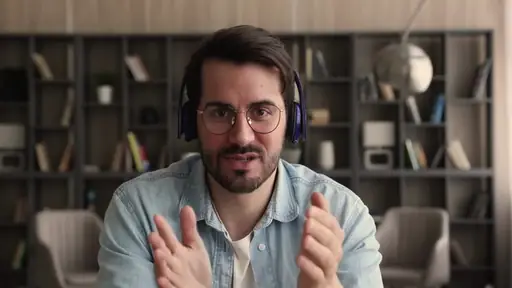
Bring guests, cameras, your screen and recorded clips into one live streaming studio, and go live with nothing to install.
See Live Studio →
-
Guests from a link
Send a guest a link and they join from their browser, on any device, with nothing to install. You mute a guest or hide their video.
See guests and cameras → -
Cameras and microphones
Connect more than one camera and microphone, put each one on the stage, and switch between them with scenes.
Blog guide → -
Screen sharing
Share your screen as a source on the stage, on its own or beside your camera, with its audio when you share from Chrome.
Help Center guide → -
Scenes
Make one scene for each part of your show, an opening, the talk, a game, a closing, and switch between them with one click while you are live. Copy a scene to start the next from it.
-
Automatic layouts
Turn on automatic layouts, and the stage rearranges itself as guests, cameras and screens join or leave.
Help Center guide → -
Logo, images, GIFs and slideshows
Put your logo, images and GIFs anywhere on the picture, or run images as a slideshow. Move and resize any of it while you are live.
Help Center guide → -
Text and animated text
Add a title, a name banner (lower thirds), a scrolling ticker or a note to viewers as text, still or animated, in the font and size you choose.
Blog guide → -
Music and audio files
Play a music track or any audio file under your show. Upload it, set its volume, and start or stop it from the studio while you are live.
-
Embed a web page
Put any web page on the stage by its address, a scoreboard or a live document. It shows as it is, with no clicking or scrolling while live.
Help Center guide → -
Portrait, square or landscape
Pick the shape of the stream in the resolution setting: landscape, portrait for Shorts, Reels and TikTok, or square, and the frame rate with it.
Help Center guide →
Send the stream anywhere, set up in one place.
Connect YouTube, Facebook, Twitch, Kick or any other platform with a login, or any service with a stream key, and set what each one needs inside the studio before you go live.
-
Multistreaming
Send one stream to YouTube, Twitch, Kick, Facebook or any other platform at the same time. Our servers send a copy to each one.
See multistreaming → -
Plugin Mode
Already use OBS, vMix, StreamYard or Ecamm Live? Add LiveReacting to your scene as a browser source, and the trivia, polls and giveaways run inside your own software.
Help Center guide → -
Chat from every platform in one place
Read and answer the comments from every platform you connect in one feed in the studio. The games and polls count every one of them.
-
RTMP, HLS and SRT outputs
Send the stream to any service that takes an RTMP feed with a stream key, beside the platforms you connect with a login. On a custom plan, by request, send it as HLS or SRT instead, with in-band SCTE-35 markers for server-side ad insertion.
Help Center guide → -
Stream settings for each platform
Set what each platform needs before you go live, inside the studio: privacy on YouTube and Facebook, a thumbnail, the YouTube category, tags and playlist, the made-for-kids flag, DVR on or off, and the video bitrate and audio quality.
Help Center guide → -
File manager
Keep every upload in one library, sorted into folders. Select many files together to move or delete them, watch your storage on a meter, and export the list of your videos as a CSV.
-
Connect a client's YouTube channel
Send a client an invite link. They sign in to Google on a page that carries your logo and name, and their channel connects to your account, with no manager access to hand over.
Help Center guide → -
Templates
Start from a ready-made stream layout and change anything in it before you go live, the videos, the games, the branding and the scenes.
See all templates →
Let the stream run itself.
A rule in the studio, our servers or your own code do the work a producer does by hand: switch the scene, restart the stream, build and start a stream.
-
API and integrations
From your own code: create a stream, put videos in its playlist, schedule it, swap a video or switch the scene while it is live, and read each broadcast's history afterwards.
See API and integrations → -
AI agents (MCP)
Connect Claude Code, Codex, Cursor or another MCP client with Streamable HTTP and a Bearer key, and the agent builds a stream from a playlist, starts it, schedules it and reads the broadcast history afterwards.
-
Automatic restart
If the server behind your stream stops answering, our system starts the stream again on another server on its own. A corrupted file in a playlist is skipped, not played.
-
Scenes that switch on their own
Set a rule on a countdown or a video playlist, and when it ends the next scene comes on by itself: the show starts when the countdown hits zero, the closing scene comes on when the last video ends.
Help Center guide → -
A scene for every track
The scene changes when the next audio track starts, so a radio stream shows the right artwork and title for every track without anyone at the desk.
Go live for free.
The Free plan includes three streams a month and does not expire. Everything happens in your browser, and our servers do the streaming.
- No credit card
- 4.8 from 633 reviews
Want the numbers first? See plans and pricing